
Overview
To comply with regulatory requirements and enhance account security, Hostagle requires customers to complete Know Your Customer (KYC) verification. KYC verification is performed securely through Digio using Aadhaar and DigiLocker.
Failure to complete KYC verification may result in temporary suspension of your services until verification is completed and approved.
Prerequisites
Before starting the KYC process, ensure that:
- You have access to your Hostagle Client Dashboard.
- Your Aadhaar number is available.
- Your Aadhaar is linked to an active mobile number.
- You have your DigiLocker 6-digit security PIN.
- Your device has a working camera for selfie verification.
Steps to Complete KYC Verification
Step 1: Login to Your Hostagle Dashboard
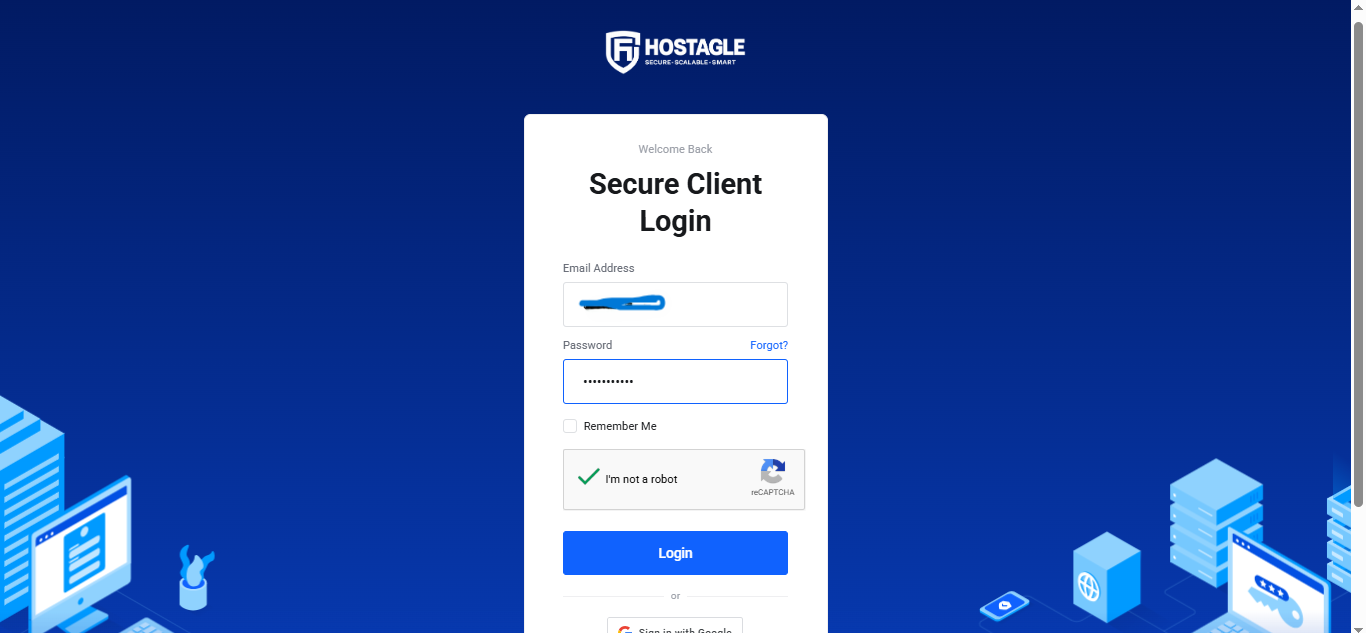
Log in to your Hostagle Client Area using your registered email address and password.
Step 2: Open KYC Verification
From the dashboard sidebar:
Client Shortcuts → KYC Verification
Click Start or Re-initiate to begin the verification process.
Step 3: Open the Digio Verification Link
You will receive an SMS from Digio containing a secure KYC verification link.
Click the link to proceed.
Step 4: Verify Your Mobile Number
- Click Send Code to Mobile.
- Enter the OTP received on your mobile number.
- Click Verify.
Step 5: Verify Aadhaar
- Enter your Aadhaar number.
- Click Next.
- Enter the OTP sent to your Aadhaar-linked mobile number.
- Click Submit.
Step 6: Complete DigiLocker Authentication
- Enter your 6-digit DigiLocker Security PIN.
- Click Done.
Step 7: Complete Selfie Verification
Allow camera access when prompted.
Take a clear selfie following the on-screen instructions.
Step 8: Finish Verification
Once all steps are completed successfully, you will see:
"KYC Process Completed"
Close the Digio verification window.
Step 9: Refresh KYC Status
Return to your Hostagle Dashboard.
Navigate to:
Client Shortcuts → KYC Verification
Click Refresh Status.
Your KYC status will update automatically.
KYC Status Meanings
Pending
Your KYC has not yet been completed.
Under Review
Your verification has been submitted and is being processed.
Verified
Your KYC has been successfully approved.
Rejected
The submitted information could not be verified. Please restart the KYC process or contact support.
What Happens If KYC Is Not Completed?
Hostagle may temporarily suspend services associated with accounts that have incomplete KYC verification.
Once KYC is completed and approved, suspended services will be automatically reactivated.
Common Issues
I did not receive the Digio SMS
- Check your mobile network.
- Wait a few minutes and try again.
- Click Re-initiate KYC from your Hostagle Dashboard.
Aadhaar OTP Not Received
- Ensure your Aadhaar-linked mobile number is active.
- Wait a few minutes and request a new OTP.
DigiLocker PIN Forgotten
- Recover or reset your DigiLocker account through the DigiLocker portal before continuing.
KYC Status Not Updating
- Return to the Hostagle Dashboard and click Refresh Status.
- Allow a few minutes for synchronization.
Need Assistance?
If you encounter any issues during the verification process, create a support ticket from your Hostagle Client Dashboard.
Our support team will be happy to assist you with completing your KYC verification.